
Extend your WiFi using an old router

If you have an old Wi-Fi router lying around collecting dust, there’s a good chance you can repurpose it as an additional access point and extend the coverage of your existing Wi-Fi network. This is a great way to fill in coverage gaps in your home or office without having to buy a new router. We’ll walk you through the steps to turn your old Wi-Fi router into a new access point.
Step 1: Reset your old router to factory settings
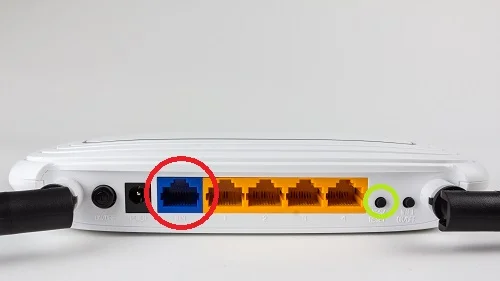
Before you start configuring your old router, it’s a good idea to reset it to its factory default settings. This will erase any existing settings and ensure that you start with a clean slate. To do this, look for a small reset button on the back of the router (Highlighted in green on the back of router shown below). Using a paperclip or a toothpick, press and hold the button for about 10 seconds until the router’s lights flash.
Step 2: Connect your old router to your new router via ethernet
Connect an ethernet cable to one of the LAN ports on your new router and the other end to the WAN or internet port (The blue port highlighted in red on the router shown above) on your old router. This will connect the two routers and allow your old router to act as an access point.
Step 3: Configure your old router
Open a web browser on a computer connected to your new router and type in the IP address of your old router into the address bar. This will usually be printed on a label on the bottom of the router or in the router’s manual. Once you’ve logged into your old router, look for the “Wireless” settings and set the SSID (network name) and password to match your new router. Make sure you use the same security type (e.g. WPA2) and encryption settings.
Step 4: Disable DHCP on your old router
DHCP (Dynamic Host Configuration Protocol) is the system that assigns IP addresses to devices on your network. Since your new router is already handling this task, you need to disable DHCP on your old router to avoid conflicts. To do this, look for the DHCP settings in your old router’s settings and turn it off.
Step 5: Connect devices to your new network
Once you’ve completed the above steps, your old router should be set up as an access point and connected to your new router. To connect your devices to the new network, simply look for the SSID you created in step 3 and enter the password. Your devices will automatically connect to the access point with the strongest signal.
In conclusion, repurposing an old Wi-Fi router as an additional access point is a great way to extend the coverage of your existing Wi-Fi network without spending a lot of money on new hardware. By following these simple steps, you can turn your old router into a new access point in no time.
